![Nursery-Kitchen-Primary-Logo-RGB-1.png]](https://portal.nurserykitchen.co.uk/hs-fs/hubfs/Nursery-Kitchen-Primary-Logo-RGB-1.png?height=40&name=Nursery-Kitchen-Primary-Logo-RGB-1.png)
Orders are set to repeat by default. You can cancel orders in two ways:
- One-day cancellation: Cancel a specific order before the deadline without affecting future repeat orders.
- Permanent cancellation: Stop the service entirely, which will cancel all repeat orders in the system (subject to ordering deadlines).
One-day cancellation
By default, your orders will be on repeat. However, if you don’t need food for a specific
day or specific items, there’s a cancellation option.
1) Select the day you want to cancel (or the day you won’t need a specific item/s).
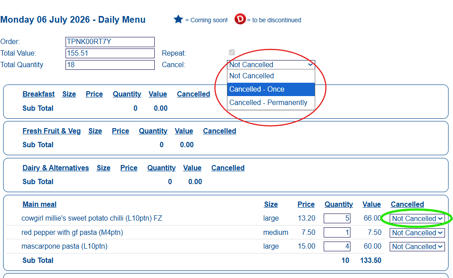
2) If you want to cancel a whole day, select the ‘Cancelled-Once’ which is at the top
of the page (see pic below, circled in red)
3) Or if you want to cancel specific items, i.e. just lunch, or side dishes, etc, select
‘Cancelled-once’ by each of the items (see pic below, circled in green)
The ‘Cancelled-once’ feature only cancel the day you apply this option to, and it
will automatically be undone in the next cycle.
Remember to click on the ‘Place order’ button on the top right-hand side of your screen
to save this change.
Permanent Cancellation
This option will apply if you want to stop our services and therefore stop the repeat
orders in the system, always respecting ordering deadlines.
Select ‘Cancelled – Permanently’ from the drop down box, either for the whole day, or for selected items.
Remember, the Day that turned RED in the ordering page, can’t be cancelled. This order
will be processed, delivered and charged for.