![Nursery-Kitchen-Primary-Logo-RGB-1.png]](https://portal.nurserykitchen.co.uk/hs-fs/hubfs/Nursery-Kitchen-Primary-Logo-RGB-1.png?height=40&name=Nursery-Kitchen-Primary-Logo-RGB-1.png)
Ordering system
The link to the ordering system (Saffron) is in the Nursery Partner Hub. The username is the email you provided at the outset. If you forget your password, you simply need to click the ‘forgot password’ button and a link will be sent to the email address you previously registered. If you wish to change your login email address, please raise a service ticket in the Customer Portal.
There are 2 menus available on the ordering system.
The day shown on the order box is the Menu Date, which is the day the children will be eating the meals.
|
Daily menu |
The main dishes, sides, second courses and snacks available each day |
|
Contingency meals |
Available every Wednesday and can be ordered on an ad-hoc basis. These dishes are suitable for freezing and can be stored in your freezer for use as a contingency.
|
Order deadlines
Orders can be placed as far in advance as the system allows — look out for the blue or green boxes in the ordering view (Saffron). Once the order deadline has passed, we’ll process the last version saved in the system.
If you’re placing your first orders or need to make any changes, you can do so up until the weekly deadline.
Here’s a quick example to help:
🗓 Order by Monday (before midnight) → for meals in the week after next
|
Week 1 |
Monday by 11.59pm |
|
|
|
|
|
Week 2 |
|
|
|
|
|
|
Week 3 |
Monday |
Tuesday |
Wednesday |
Thursday |
Friday |
There is a deadline countdown at the top of each order.
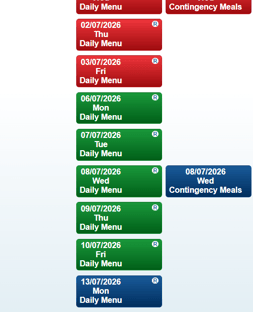
The order boxes can be in 3 colours:
Red – order locked. These dishes are being prepared and no change is possible
Blue – order open, place new orders or amend any repeat orders until deadline
Green – order open, changes to the orders have been made (saved) but you can still make changes until the deadline
Placing an order
To place an order, click on the order box for the menu date you wish to order.
- Large tray
- Medium tray
- Packs (portions size, units or grams specified in title)
Refer to the portioning guidance shown next to each item for recommended serving sizes, and use this to calculate the number of trays or packs needed based on your numbers.
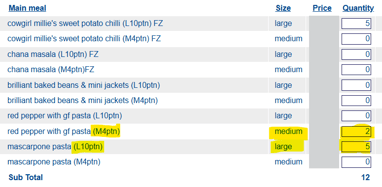
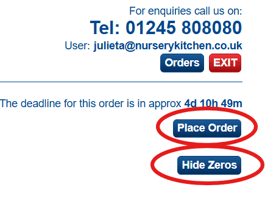
Once you have finished, click ‘Hide Zeros’ (top right-hand corner of the screen) to remove any items not ordered and review your selection.
Make sure to click ‘Place Order’ in the top right-hand corner of the screen to save your order. The last saved version is the one that will be processed by the deadline and repeated in the next cycle.
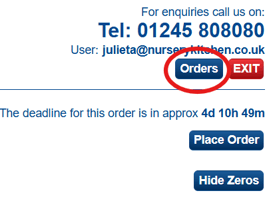
Always go back to the main ordering page to select another day by clicking on the
‘ORDERS’ button (never use the browser's back button)
You will know your order has been successfully placed when the order box in the main menu changes from blue to green.
Once orders are placed, your food order(s) will be set to repeat, meaning your last saved selection and quantities will automatically carry over to the next menu cycle.
Orders will be processed (prepared, delivered, and charged) after the ordering deadline unless you update or cancel them beforehand.
If your numbers remain stable for three consecutive weeks, you won’t need to place orders each week—your recurring order will continue automatically.
Print orders
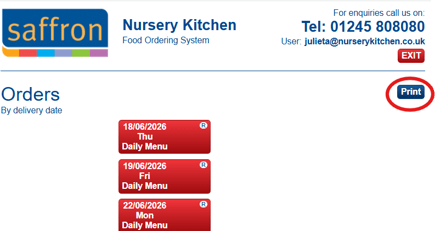
You can print your orders for the kitchen by selecting ‘print orders’ in the top right of the main order system by entering the dates you wish to print. This can be held in the kitchen and should be used to check in deliveries and make daily kitchen plans.
Please note that the system will only allow you to ‘print’ the orders you can see in the
portal. If you want reports from previous dates, please send your request through the
‘ticket portal’